

Running LocalStack on Kubernetes for Local AWS Development & Testing
Learn how to run LocalStack on a local Kubernetes cluster using the LocalStack Operator, and deploy a Lambda function that queries an RDS MySQL database, with both running as pods in your cluster.
Introduction
Kubernetes has become a popular solution for running containerized applications, and many development teams want their local environments to match what runs in production. Instead of maintaining a separate container setup for local development, these teams run Kubernetes locally and deploy their services there from the start.
LocalStack emulates AWS cloud services on your local machine. It runs as a container and replicates services like Lambda, S3, RDS, SQS, and many more, so you can develop and test AWS-dependent applications without connecting to the real cloud. Since LocalStack runs in a container, it can deploy directly into a Kubernetes cluster, fitting into existing workflows without requiring a different runtime.
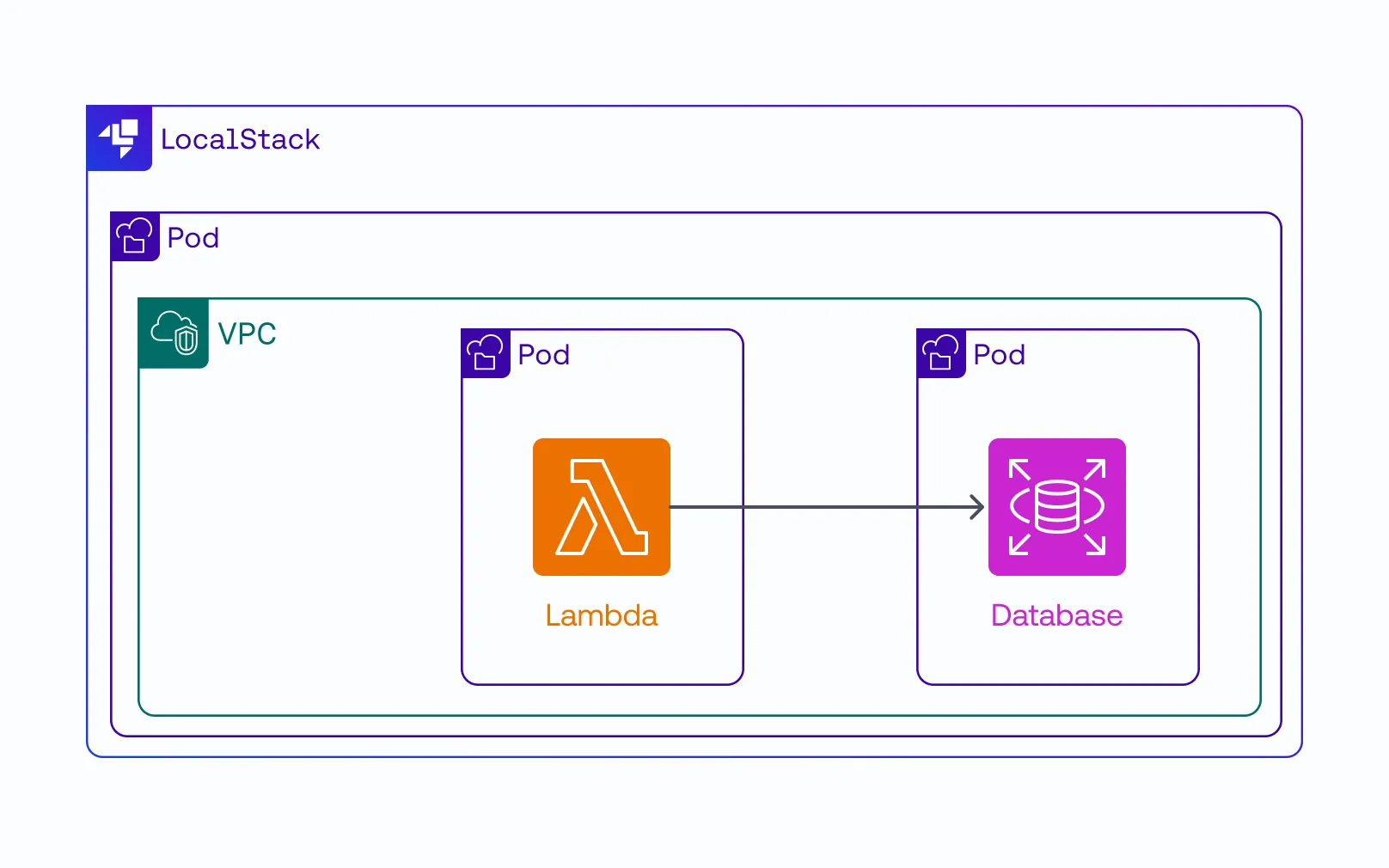
In this tutorial, we’ll deploy LocalStack into a local Kubernetes cluster and use it to run a Lambda function that queries an RDS MySQL database. Both the database and the Lambda function run as separate pods in the cluster, managed by LocalStack’s Kubernetes executor. We’ll provision the AWS resources on LocalStack using Terraform, then invoke the function to verify the setup.
Key Concepts
The Kubernetes Executor
LocalStack runs many AWS services (S3, SQS, DynamoDB, and others) inside its own container. Some services need their own isolated containers: Lambda functions, ECS tasks, EC2 instances, DocumentDB, MWAA, and several RDS engines (MySQL, MSSQL) fall into this category. By default, LocalStack launches these using a Docker backend.
When you set the CONTAINER_RUNTIME environment variable to kubernetes, LocalStack switches to its Kubernetes executor. Instead of creating Docker containers, it launches these services as pods in your Kubernetes cluster. A Lambda function becomes a pod. An RDS MySQL database becomes a MySQL pod.
They all share the cluster’s networking and can communicate with LocalStack through standard Kubernetes service discovery. This is transparent to your application code: AWS API calls work the same way regardless of which executor handles the containers behind the scenes.
The LocalStack Operator
The LocalStack operator is a Kubernetes controller that manages LocalStack deployments. You define a LocalStack custom resource in YAML, and the operator handles creating the LocalStack pod, configuring cluster DNS so that AWS-style hostnames resolve to the LocalStack service, and managing the deployment lifecycle. This removes the need to manually configure DNS entries or run custom setup scripts.
Prerequisites
Before starting, make sure you have the following:
- Obtain a LocalStack Auth Token and export it as
LOCALSTACK_AUTH_TOKEN - Install Docker
- Install
kind(any local Kubernetes cluster works) - Install Terraform (v1.11.1 or later) with
tflocal - Install
kubectl - Install AWS CLI with the
awslocalwrapper - Install
jqfor formatting JSON output - Install
k9s(optional, for visual cluster monitoring)
Step 1: Clone the repository
Clone the demo repository that contains the Terraform configuration and Lambda function source code:
git clone https://github.com/localstack-samples/localstack-k8s-demo.gitcd localstack-k8s-demoThe repository has the following files:
main.tf: Terraform configuration that provisions an RDS MySQL database and a Lambda function on LocalStacklambda-src/: Python code for the Lambda function, withpymysqlas a dependencylocalstack-instance.yml: Custom resource definition for the LocalStack deploymentscripts/: Helper scripts for managing the auth token secret and port forwardingMakefile: Convenience targets for the full workflow
Step 2: Create the Kubernetes cluster
If you want to monitor the cluster visually, open a separate terminal and run k9s. The interface starts empty but populates as pods come up.
Create a local Kubernetes cluster using kind:
kind create cluster --name ls-k8s-demoVerify the cluster is running:
kubectl cluster-infoStep 3: Deploy the LocalStack operator
Deploy the LocalStack operator to manage the cluster DNS. This step installs the operator controller and sets the LocalStack service as the cluster DNS resolver, so that AWS-style hostnames (like RDS endpoints) resolve correctly inside the cluster:
kubectl apply -f https://github.com/localstack/localstack-operator/releases/latest/download/controller.yamlWait for the operator pod to reach a Running state:
kubectl get pods -n localstack-operator-systemYou should see the controller manager pod ready:
NAME READY STATUS RESTARTS AGElocalstack-operator-controller-manager-78dcf78855-xxxxx 1/1 Running 0 30sStep 4: Deploy LocalStack into the cluster
Create a Kubernetes namespace and a secret containing your Auth Token. The LocalStack deployment references this secret to activate licensed features like the Kubernetes executor:
kubectl create namespace workspacekubectl create secret -n workspace generic localstack-auth-token \ --from-literal=LOCALSTACK_AUTH_TOKEN=$LOCALSTACK_AUTH_TOKENDeploy the LocalStack instance using the custom resource definition:
kubectl apply --server-side -f ./localstack-instance.ymlThe localstack-instance.yml defines a LocalStack custom resource that the operator picks up:
apiVersion: api.localstack.cloud/v1alpha1kind: LocalStackmetadata: name: env-1 namespace: workspacespec: image: localstack/localstack-pro dnsProvider: coredns dnsConfigName: coredns dnsConfigNamespace: kube-system debug: "trace" envFrom: - secretRef: name: localstack-auth-tokenThe operator reads this resource, creates a pod running the LocalStack Pro image, and configures CoreDNS to forward AWS-style DNS queries to LocalStack.
Wait for the LocalStack pod to be ready before continuing. This may take a minute or two while the image is pulled:
kubectl get pods -n workspace -wOnce the pod shows 1/1 Running, proceed to the next step.
Step 5:Set up port forwarding
To run AWS commands against LocalStack from your host machine, forward port 4566:
kubectl port-forward -n workspace svc/localstack-env-1 4566This runs in the foreground, so open a new terminal for the remaining steps. Verify that LocalStack is accessible:
awslocal sts get-caller-identityThe awslocal command sends AWS API calls to port 4566 on your machine. The port forwarding then routes these requests to the LocalStack pod, so you can create and manage AWS resources from your host.
Step 6: Deploy the AWS infrastructure with Terraform
The Terraform configuration in main.tf provisions the following resources on LocalStack:
- A VPC (required by the RDS module)
- An RDS MySQL database (
k8sdb) - A Lambda function (
myfunction) that connects to and queries the database
Both the database and the Lambda function are managed by LocalStack but run as separate pods in the cluster. The RDS instance starts a MySQL pod, and the Lambda function gets its own pod when invoked.
Initialize Terraform and apply the configuration:
tflocal init -upgradetflocal apply -auto-approveThe deployment takes a few minutes as the MySQL pod needs to start up. Monitor progress with k9s or:
kubectl get pods -A -wStep 7: Invoke the Lambda function
The Lambda function connects to the RDS MySQL database and runs the following operations:
- Creates a temporary table:
CREATE TEMPORARY TABLE foo (id INT NOT NULL PRIMARY KEY AUTO_INCREMENT,value VARCHAR(255) NOT NULL);
- Inserts two rows:
INSERT INTO foo (value) VALUES ('test'), ('another')
- Queries all rows:
SELECT * FROM foo
Invoke the function:
awslocal lambda invoke \ --function-name myfunction \ --payload '{}' /dev/stdout | jq .The first invocation takes about 30 seconds as the Lambda pod needs to start. You should see output like:
{ "results": [ [ 1, "test" ], [ 2, "another" ] ]}{ "StatusCode": 200, "ExecutedVersion": "$LATEST"}Check the k9s interface or run kubectl get pods -n workspace to see all running pods:
NAME READY STATUS AGElambda-myfunction-xxxxx 1/1 Running 36slocalstack-env-1-xxxxx 1/1 Running 11mls-mysql-xxxxx 1/1 Running 4mYou’ll find the LocalStack pod (localstack-*), the MySQL database pod (ls-mysql-*), and the Lambda function pod (lambda-myfunction-*), all running in the workspace namespace.
Step 8: Cleanup
To tear down the setup:
tflocal apply -destroy -auto-approvekubectl delete -f ./localstack-instance.ymlkubectl delete secret -n workspace localstack-auth-tokenkind delete cluster --name ls-k8s-demoConclusion
This tutorial walked through deploying LocalStack into a local Kubernetes cluster using the LocalStack operator, then provisioning an RDS MySQL database and a Lambda function with Terraform. The Kubernetes executor placed both services into separate pods, and we invoked the Lambda function to query the database, all running locally in the cluster.
This setup fits teams that already use Kubernetes and want their local AWS development to run in the same environment. The LocalStack operator handles DNS and deployment management, and the Kubernetes executor routes services that need their own containers into dedicated pods.
Find the sample repository at localstack-samples/localstack-k8s-demo. For more on LocalStack’s Kubernetes integration, see the LocalStack documentation.