Unless you’re new to this, you know the drill. You write some Lambda code locally, it works great, you deploy it, and then… something’s wrong in staging. Maybe it’s an IAM permission. Maybe a service dependency you forgot about. Maybe the data shape is subtly wrong somewhere in the chain. So you crack open CloudWatch, squint at a wall of logs, and start adding console.log calls like it’s 2009.
What if you could just see every API call your application makes, in real time, with full payloads and IAM evaluation results, before it ever touches a real AWS account?
That’s App Inspector. It ships built into LocalStack, zero config required. To prove it, I’m using the amazon-sqs-best-practices-cdk sample from AWS. It’s a Well-Architected inventory management system written in Python CDK: CSV files land in S3, a Lambda function parses them and batches records into SQS, a second Lambda function polls the queue and writes to DynamoDB. A nice real-world pipeline with multiple async boundaries. Exactly the kind of thing that’s fun to debug blind. Let me show you what it actually looks like with App Inspector running.
Note: I’ve intentionally introduced errors into my local copy of the sample app to demonstrate how App Inspector surfaces them. If you clone the repo and run it yourself, you won’t see the same errors. The original sample is clean.
How Does It Even Work?
App Inspector hooks directly into LocalStack’s internal request pipeline. Every AWS API call through localhost:4566 gets intercepted, tagged with operation context, and emitted to an operation history. The web UI streams it back to you live over server sent events (SSE).
No agents. No OpenTelemetry SDK. No sidecars. If LocalStack is running, the observability is just… on.
Each API call becomes an operation in the stream. One file uploaded to S3, rippling through Lambda, SQS, and DynamoDB will produce a whole cluster of operations in the same flow. You’ll see why that grouping is useful in about two minutes.
The Operation Stream: Full Visibility Into Your Cloud App
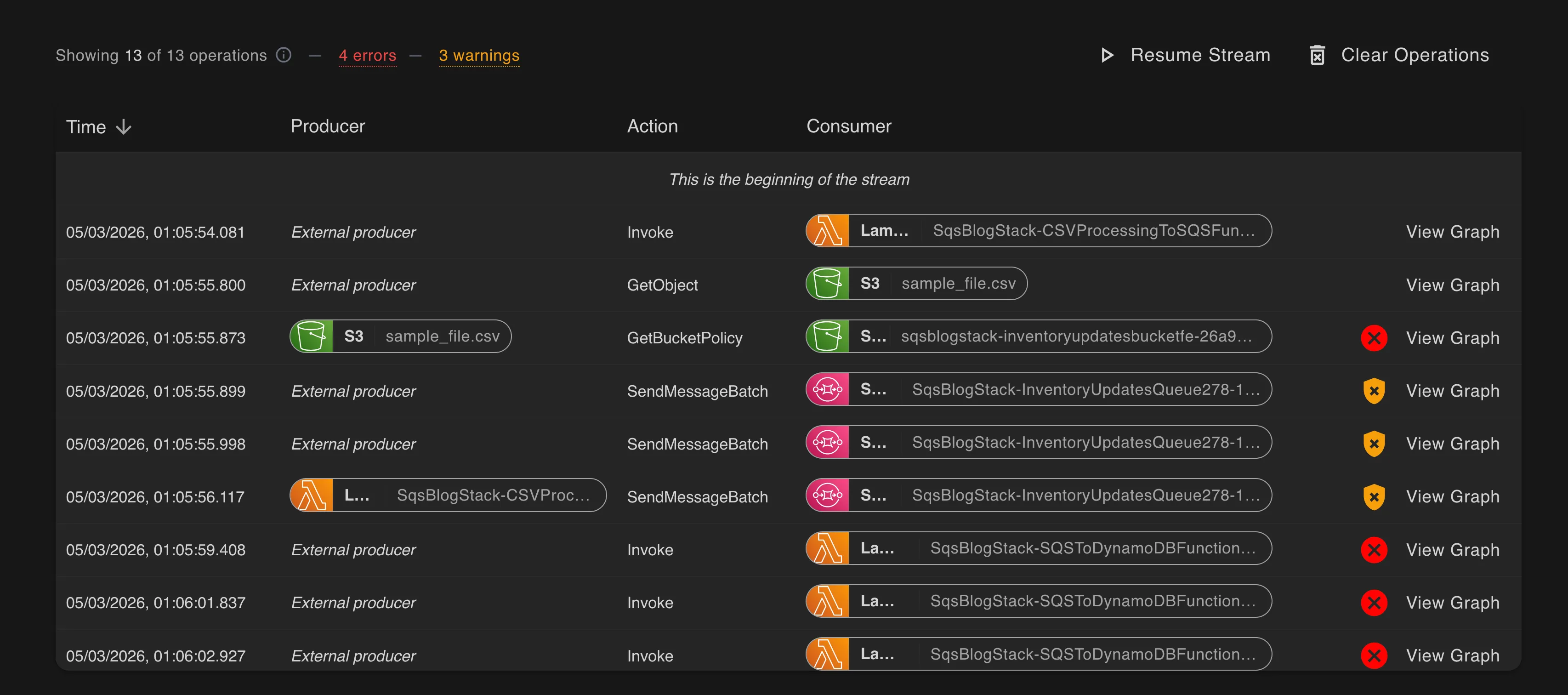
Open the App Inspector tab in the LocalStack web UI and you get a live scrollable stream of every API call your application is making. Here’s a slice from a real CSV inventory pipeline:
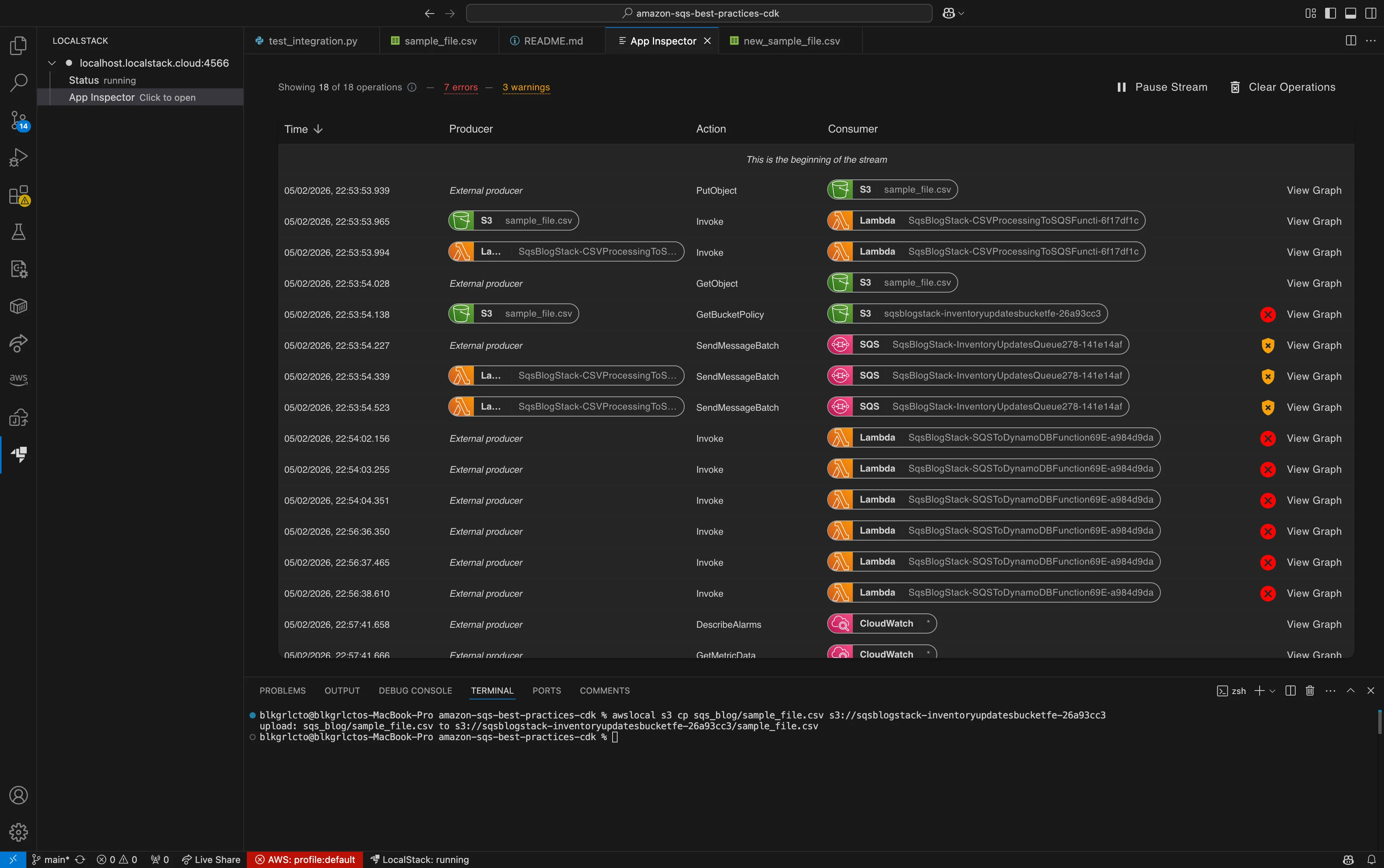
The Producer column is the thing that makes this click. You can see the S3 event triggering the Lambda invoke, the Lambda triggering SQS, SQS eventually triggering the DynamoDB Lambda. The whole workflow is right there, no log archaeology required.
Look further down the stream and you’ll notice the producer resets to “External producer”, that’s the async boundary. The SQS consumer runs in a separate operation context because SQS delivery is asynchronous, and that’s correct behavior, not a bug. Without this view you’d be stitching together CloudWatch log groups trying to figure out why your operations “break” at that point. With App Inspector, the timeline makes it obvious.
Errors and warnings surface right in the stream too. The header shows the error and warning count so you know something needs attention before you even click into an operation. No scrolling through rows hoping to spot the problem. The stream tells you where to look.
The Dependency Graph: This is the “Oh!” Moment
Click View Graph on any row and you get a dependency graph. Nodes are AWS resources, edges are operations. The full zoomed-out view looks like a proper architecture diagram:
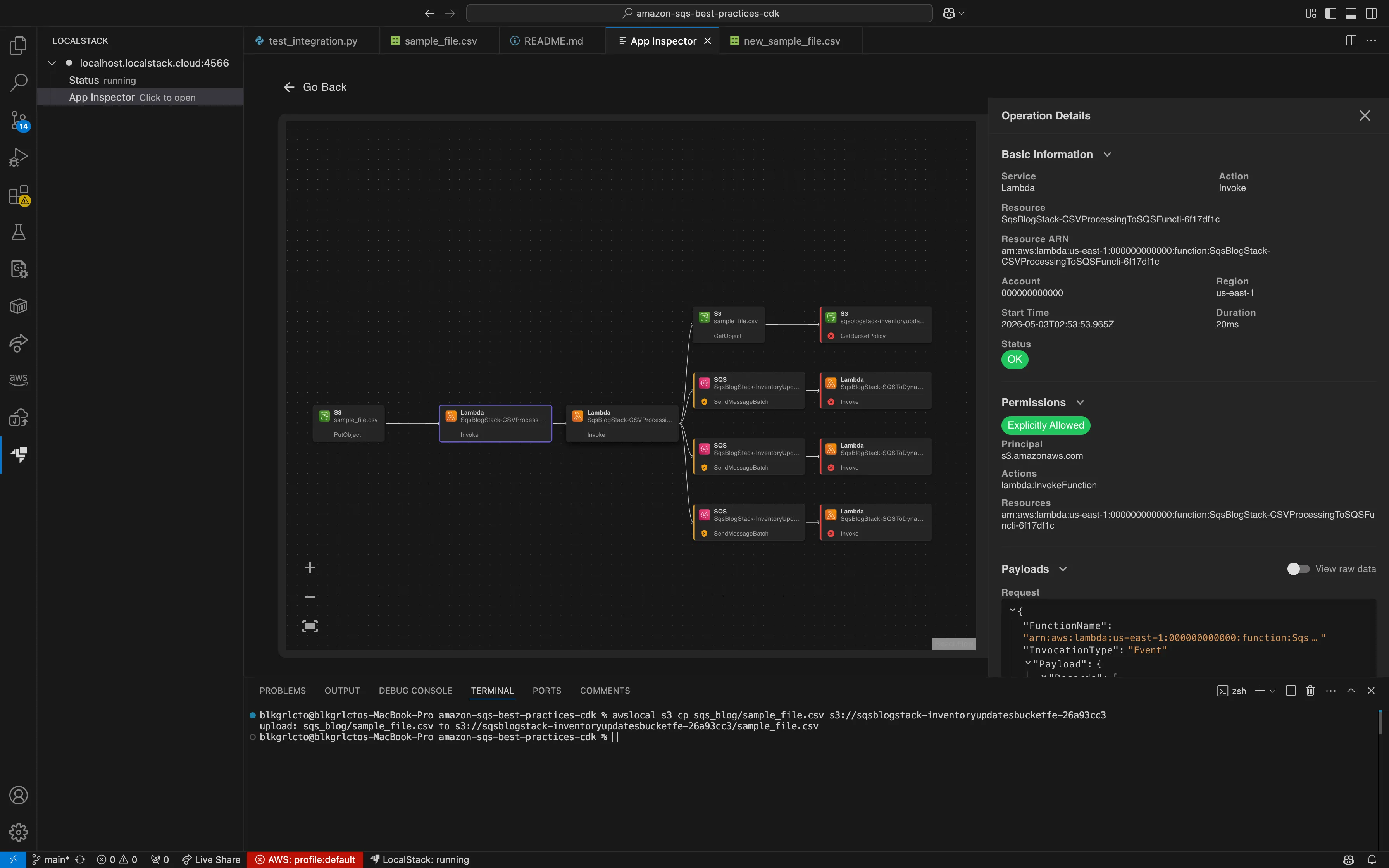
Cool. But zoom in and this is where it gets interesting:
That single Lambda invoke is actually making four downstream API calls:
GetObjectonsample_file.csvto read the CSV- Three separate
SendMessageBatchcalls to the same SQS queue
That last point is worth pausing on. The CSV had 30 rows. SQS SendMessageBatch caps at 10 messages per call, so the Lambda is chunking it into three batches. Before seeing this graph, you’d look at the stream, see three SendMessageBatch operations, and immediately assume something is retrying. Here it’s obvious they’re all intentional. One graph, mystery solved.
But wait, the stream also shows 7 errors and 3 warnings flagged at the top. That’s where it gets really useful.
Errors That Actually Stand Out
App Inspector visually distinguishes between API errors and IAM-specific errors, right in both the list and graph views.
In the stream, IAM errors get a shield icon so you can tell at a glance whether a failure is a permissions problem or something else entirely. Non-IAM errors use a regular ✕. The error count in the header gives you the headline, and color-coded indicators (red for errors, orange for warnings) make scanning a long operation stream fast.
In the graph view, the same information carries over. Operations with errors get a red highlight, and warnings get an orange one. Click into any highlighted node and the Operation Details panel tells you exactly what happened. No ambiguity.
This matters because in a real pipeline, you might have dozens of operations. Without visual error indicators, you’re clicking through nodes one at a time hoping to find the broken one. With them, you open the graph and the problem is already glowing red.
Operation Details: The Part Where You Actually Fix the Bug
Click any operation and the Operation Details panel slides in. This is the full picture.
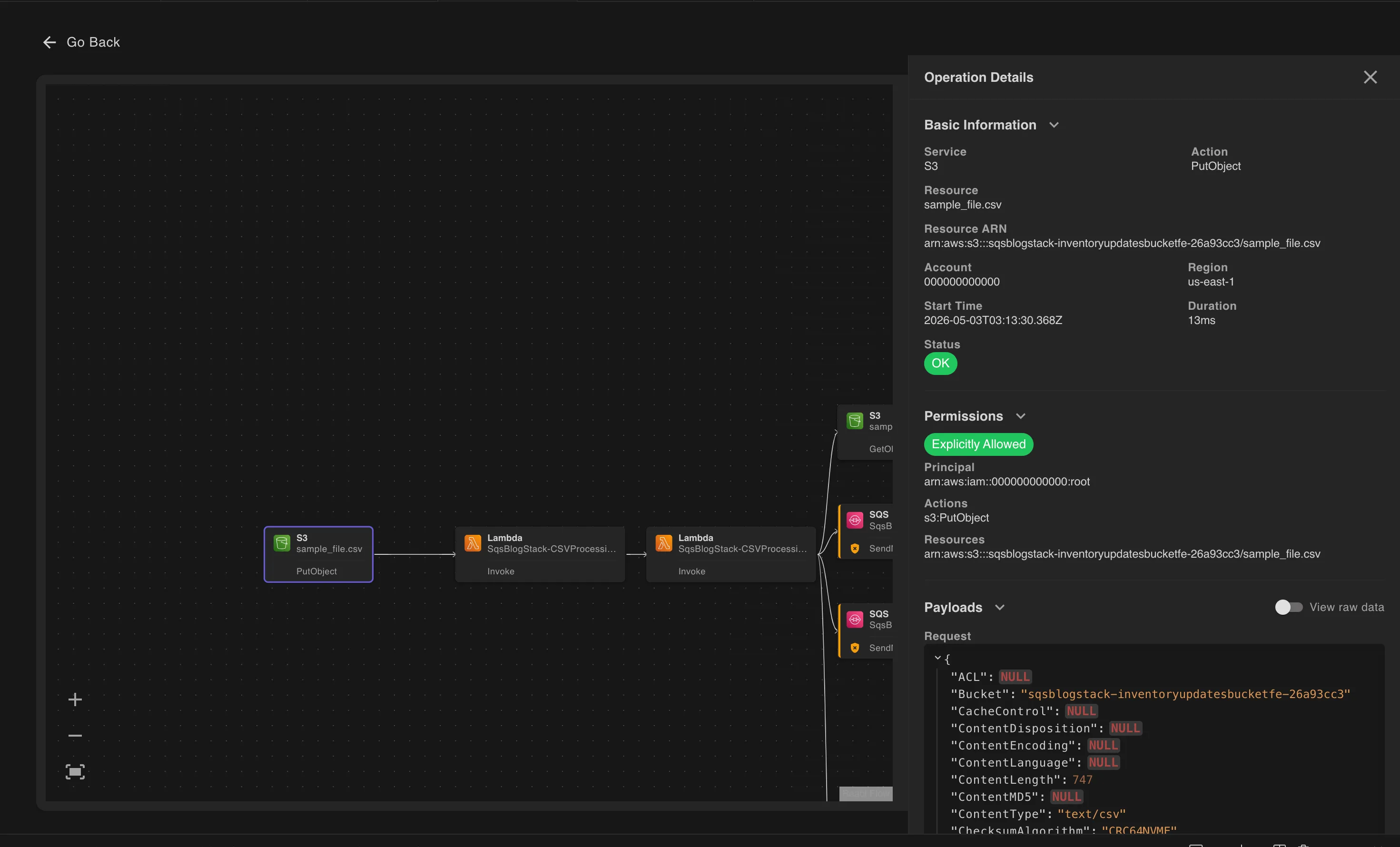
Basic Information
Service, operation, resource, ARN, account, region, start time, and duration. That’s emulated per-call timing without setting up any profiling infrastructure, or writing Date.now() before and after every SDK call like some kind of cave person.
Permissions
Every operation records the IAM policy evaluation result inline. Explicitly allowed, implicitly allowed, or denied, plus which statement matched.
This single feature will probably save more debugging hours than everything else combined. A classic trap: your Lambda has s3:GetObject but is silently missing another permission. Without App Inspector you’d get a vague error somewhere downstream and spend an hour in the IAM console convincing yourself everything looks fine. With App Inspector you see the permission result right next to the operation that triggered it, and you know exactly what to fix.
Payloads: The Full Message Bodies Are Right There
Every request and response payload is captured and shown in a syntax-highlighted JSON viewer. Null fields are highlighted in red/orange so you can spot missing parameters at a glance. Toggle View raw data to get the wire format if you’re diffing against AWS SDK docs.
Here’s one of those three SendMessageBatch calls:
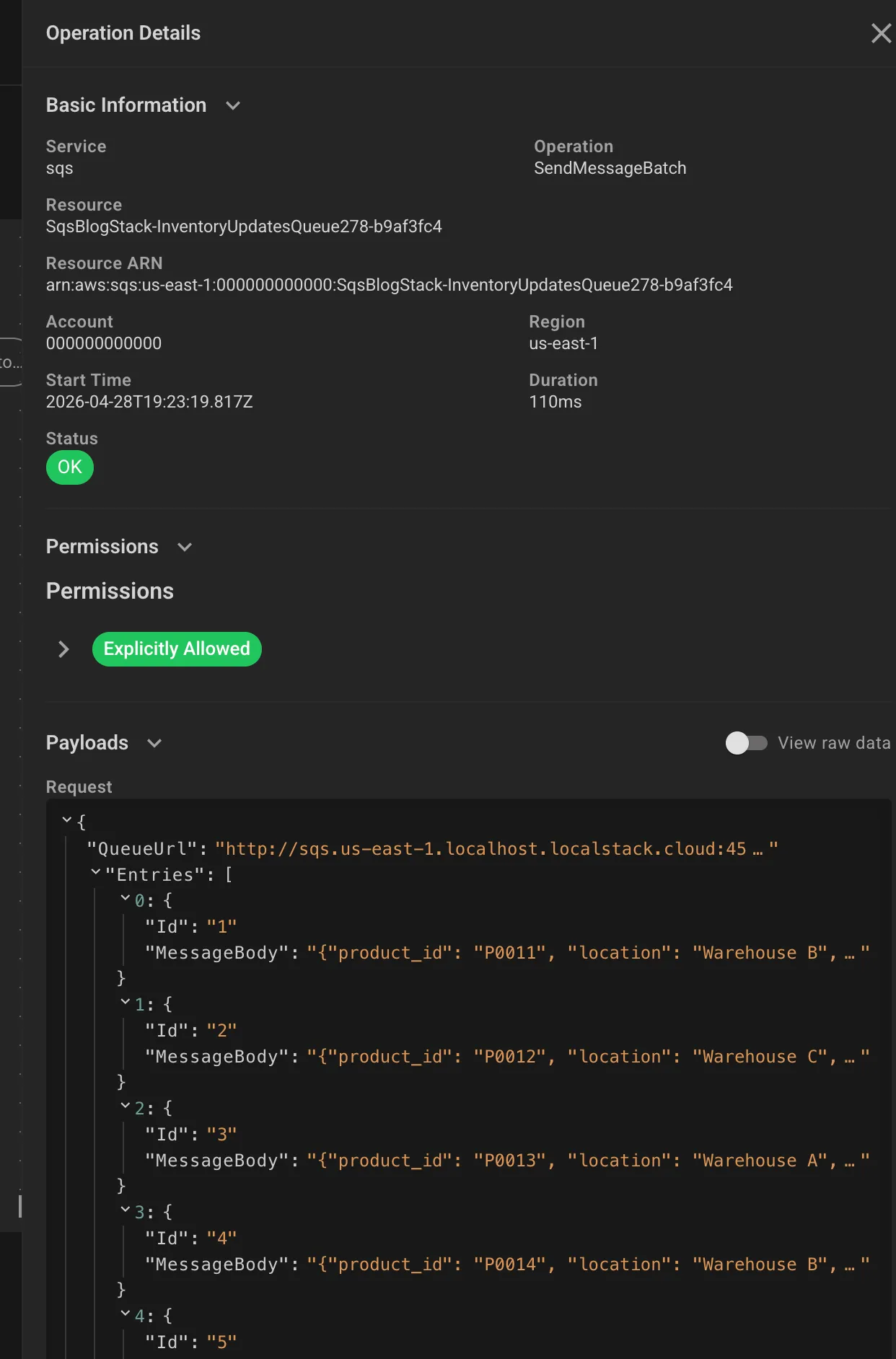
Ten entries in the request, each carrying product_id and location (e.g., {"product_id": "P0011", "location": "Warehouse B"}). You can see exactly what’s flowing into SQS. No more “did the serialization break or did the Lambda just never send it?” That question now has a one-click answer.
The response is just as useful:
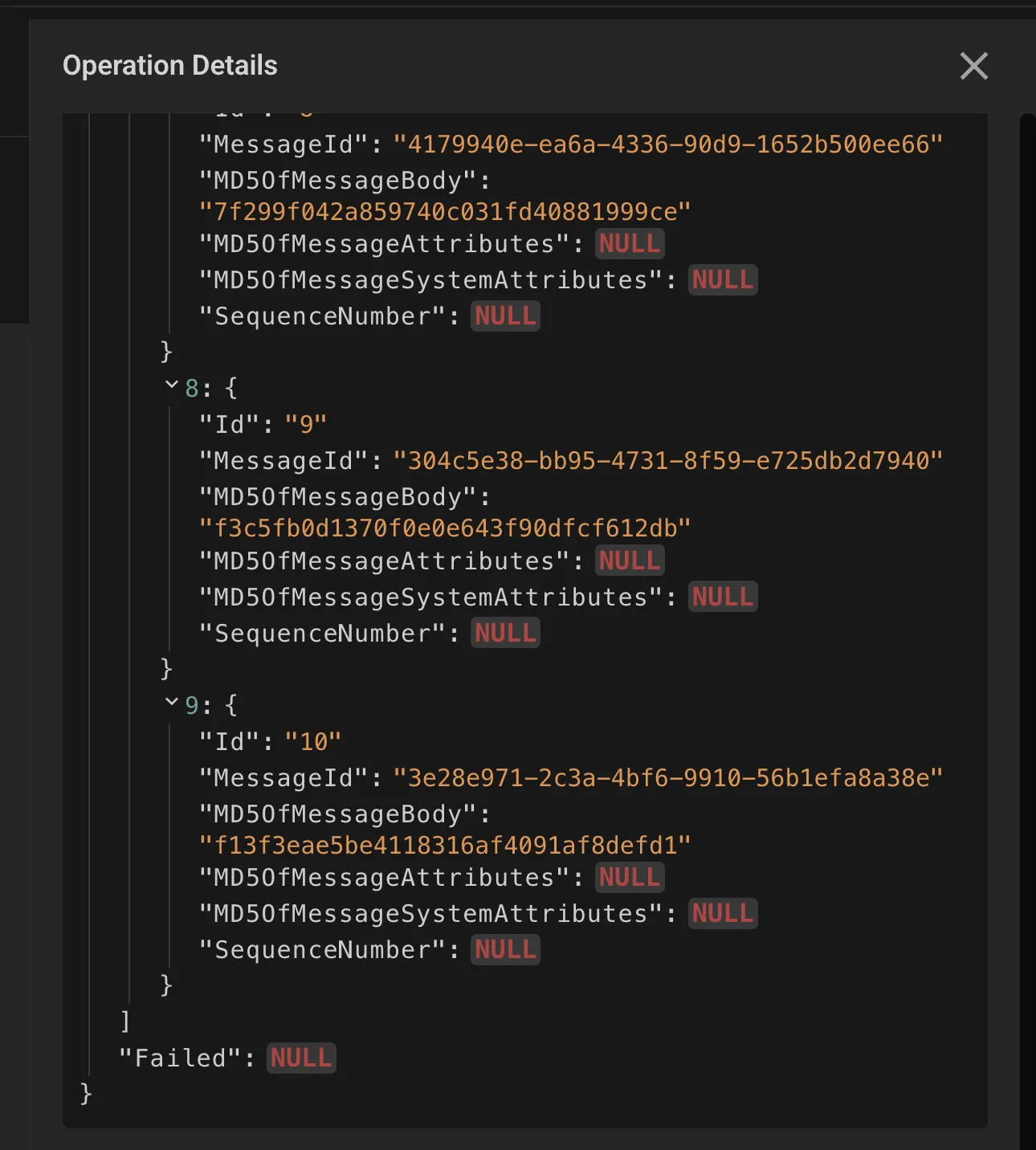
All 10 messages got MessageIds back. "Failed": NULL means zero failures. If a message was malformed or hit a queue limit, it would show up in the Failed array rather than being silently eaten. Silent failures in SQS are a special kind of miserable to debug in production. This makes them impossible to miss locally.
Lambda Errors and Logs Inline
When a Lambda invocation fails, the Operation Details panel shows FunctionError: "Unhandled" alongside the full error payload. In this pipeline, the SQS-to-DynamoDB consumer was crashing with:
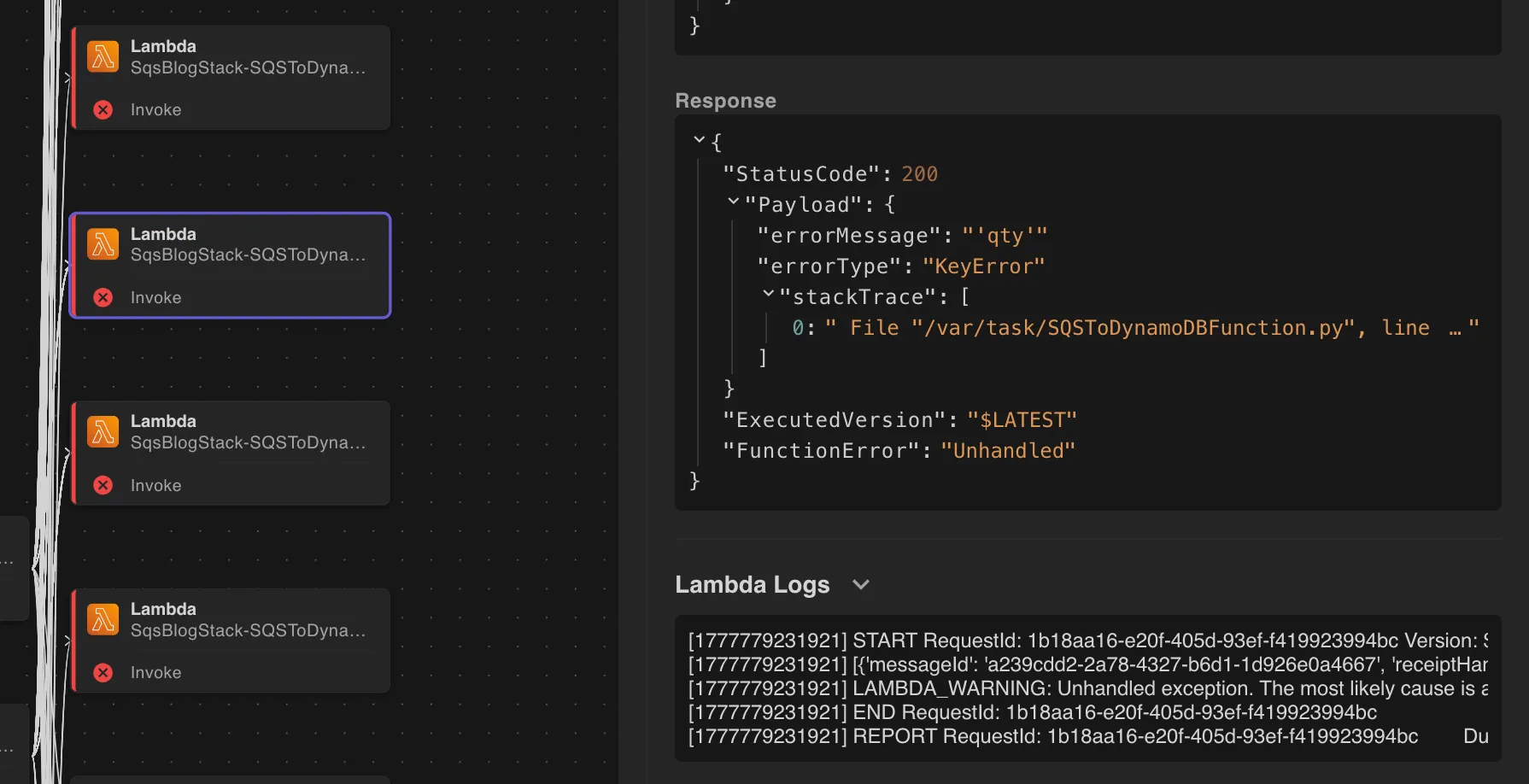
The Lambda was trying to read a qty field that was never in the message body. The CSV only has product_id and location columns. Someone wrote the DynamoDB writer against an assumed schema that the upstream Lambda never actually sends.
Here’s how you’d work through this with App Inspector:
- The error panel tells you the exact field name that’s missing (
qty) and which Lambda function threw it. You already know what’s broken without touching a log file. - Flip over to the
SendMessageBatchpayload for the upstream Lambda. You can see exactly what fields are actually being sent:product_idandlocation, noqtyanywhere. That confirms the bug is in the consumer’s expectations, not the producer’s output. - From there it’s a straightforward fix: either update the DynamoDB writer to not expect
qty, or update the CSV processor to include it. The right answer depends on your data model, but App Inspector has already told you everything you need to make that call.
Without this, you’d be guessing whether the field was dropped in serialization, never sent, or just named differently somewhere in the chain. App Inspector short-circuits all of that.
And the Lambda Logs section is right there in the same panel, the full execution log, inline, without switching tabs or hunting for the log group.
The Actual Debug Workflow
# Start LocalStacklocalstack start
# Bootstrap and deploy your stackcdklocal bootstrapcdklocal deploy
# Trigger the thingawslocal s3 cp sample_file.csv \    s3://sqsblogstack-inventoryupdatesbucketfe-e48cf174/ \    --endpoint-url http://localhost:4566
# Go to localhost:4566 -> App Inspector tab
Note: cdklocal is the LocalStack wrapper for the CDK CLI. If you don’t have it: npm install -g aws-cdk-local.
Once the upload fires:
- Click any operation in the stream to open the dependency graph for that flow.
- Check the error and warning count at the top. App Inspector flags them automatically.
- Click any errored operation. Check Permissions for IAM issues, check the response payload for application errors, and check Lambda Logs for the full traceback, all in the same panel.
- Fix, redeploy, re-trigger. Reset with Clear Operations.
Why This Beats Adding More Logs
Without App Inspector: add logs, redeploy, re-trigger, grep CloudWatch, rinse, repeat.
With App Inspector:
- Every call is captured, not sampled
- IAM evaluation is inline with the operation that triggered it
- Errors and IAM failures are visually flagged in both the stream and the graph
- Lambda execution logs inline with the failing operation
- Full request and response payloads on every single call
- Operation history persists across your session so you can inspect it after the fact
- Zero setup
Try It
App Inspector is a core feature of LocalStack, available in the web UI under the App Inspector tab or, my favorite, in VSCode using the LocalStack Toolkit. Hit Pause Stream to freeze the view while you dig in, and Clear Operations to reset before a new test run.
But honestly, the best way to understand it is to run something you think is simple.
Upload a file. Trigger a Lambda. Watch what actually happens.
Because the moment you see your “straightforward” workflow explode into a chain of API calls, permission checks, and hidden dependencies, something clicks. You stop guessing. You stop over-logging. You stop debugging blind.
You just… see it.
And once you’ve debugged like that, it’s really hard to go back.
Check the licensing page to see what’s included on your tier. Docs at docs.localstack.cloud.